How iOS Accessibility Features Encourage New Possibilities in Work and Education
Inside: Learn about how iOS accessibility features support independence in the use of iPhones and iPads for students and adults.
In today's tech-driven world, smartphones and tablets are easy to take for granted.
We swipe, tap, and talk to our devices without thinking twice. But for individuals with disabilities, navigating a phone or tablet isn’t for convenience alone —it’s about empowerment and independence.
These aren’t just add-ons or extras. They’re life-changing tools.
These tools can help individuals with disabilities
access the internet
make a call
self-regulate
hear in a crowded space
And so much more
Table of Contents
VoiceOver: Access for Individuals with a Visual Impairment
Magnifier: Bringing the World into Focus
AssistiveTouch: Simplifying Complex Gestures
Live Listen: A Personalized Sound Experience
Guided Access: Keeping Focus in a Distracting World
Building Confidence, One Tap at a Time
FAQ
What is iOS Accessibility?
Every iPhone and iPad has a section of adjustments and settings specific to accessibility. You can find this on your own device by going to “settings” and then scrolling down to “accessibility.” Once you open this menu, you will find all of the accessibility settings available on your device.
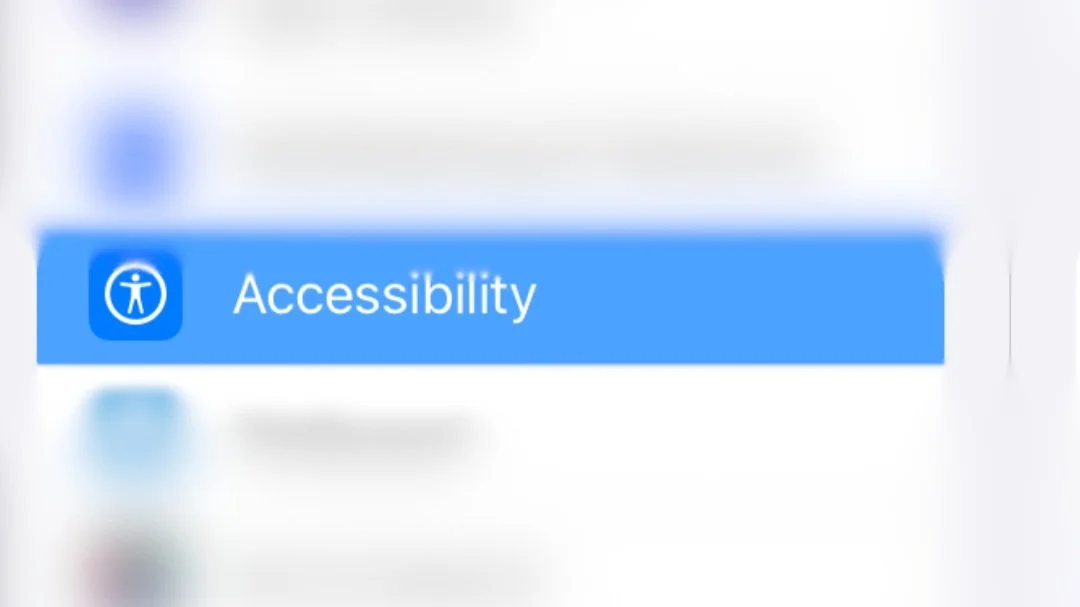
Settings are arranged by the disability area that they support. Currently, Apple has arranged these into accessibility settings for:
Vision
Physical and Motor
Hearing
Speech
Accessories
General
There are multiple settings within each of these categories and hundreds of combinations of supports that can be turned on or off to make the device work best for you or the person you are supporting.
iOS and iPad OS accessibility features are always updating and changing.
Below, I will share a few of my current favorites, but be sure to check out the link at the end of the article to Apple’s website, where they release information about the newest accessibility features with each update.
A Few iOS and iPadOS Accessibility Settings
VoiceOver: Access for Individuals with a Visual Impairment
Imagine trying to read a message or browse a website without being able to see the screen.
For those with visual impairments, this is their every-day reality.
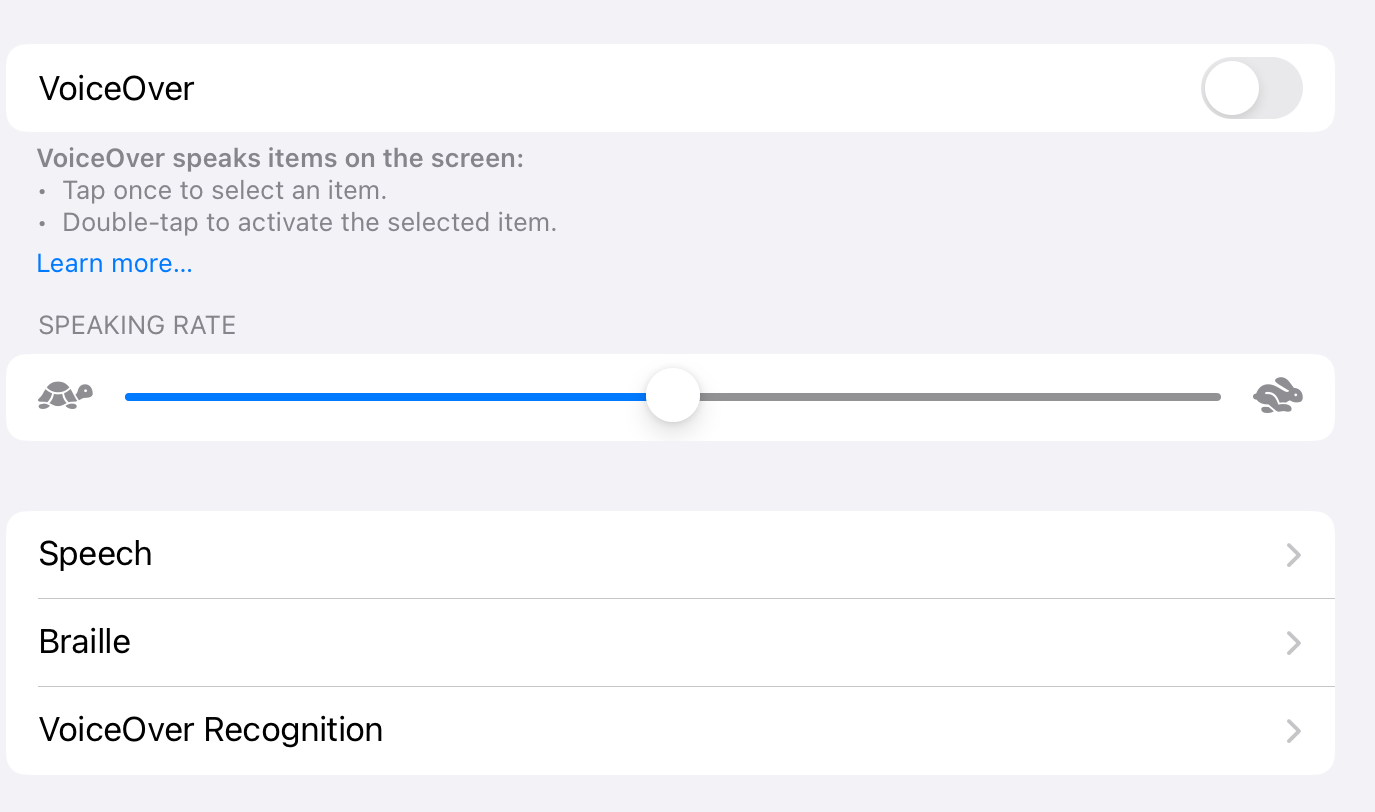
Enter VoiceOver, a screen reader that turns text into speech.
VoiceOver gestures allow users to use all of the features of an iPad or iPhone, including allowing a user to:
navigate apps
read emails
explore photos—yes, it can describe what’s in an image!
Magnifier: Bringing the World into Focus
For individuals with partial vision loss, small print can be a consistent frustration.
The Magnifier feature in iOS turns the device’s camera into a magnifying glass.
Magnifier allows users to zoom in on
text
objects
anything they need to see with clarity.
This can be used for more than fine print on a contract—think about:
menus
signs in public places.
labels on prescription bottles
Magnifier also allows the user to customize the contrast and add color filters to support different vision needs.
Example: A young professional with low vision can use Magnifier during meetings to read handouts or presentation slides, allowing them to keep their focus on the conversation instead of struggling to read.
AssistiveTouch: Simplifying Complex Gestures
For individuals with motor impairments, using a touch screen can be daunting.
Swiping, pinching, or even pressing buttons may not be possible.
AssistiveTouch solves this by creating a customizable menu of simple touch options.
Users can create shortcuts for actions which would otherwise require complex gestures, like taking a screenshot or opening the Control Center.
Example in Action: A person with limited hand mobility might struggle to press the power and volume buttons simultaneously to take a screenshot. With AssistiveTouch, a simple tap on the screen completes the action.
Live Listen: A Personalized Sound Experience
For individuals who have a hearing impairment, crowded spaces can be overwhelming.
Background noise makes it almost impossible to focus on a single conversation.
Live Listen turns an iPhone or iPad into a microphone and works with compatible hearing aids or AirPods.
Users can place their device closer to the sound source, and it will stream the audio straight to their ears, filtering out background noise.
Example in Action: Picture a student in a noisy classroom who struggles to hear the teacher. By placing their phone on the teacher’s desk, they can focus on the lecture, allowing them to engage with the lesson more effectively.
Guided Access: Keeping Focus in a Distracting World
For individuals with ADHD, autism, or cognitive disabilities, staying focused can be a challenge, even without the constant barrage of notifications and apps on a device. [Learn more about executive functioning]
Guided Access locks users into a single app, preventing them from switching to other tasks until they’ve completed what they’re working on.
Example in Action: In a classroom setting, a student with ADHD can use Guided Access to stay engaged with educational apps without getting distracted by games or social media. This feature helps them stay on task and achieve their goals.
Building Confidence, One Tap at a Time
The beauty of iOS accessibility features is they’re not just about making technology easier to use—they’re about building confidence.
These tools give individuals the autonomy to navigate their digital and physical environments without depending on others.
To keep up to date on what Apple is releasing next, you can visit their Newsroom page. This is where Apple will publish all news releases, including those that reference new accessibility features.
FAQ
Which accessibility options are available on iPhone?
iPhones have a standard selection of accessibility features, including those for vision, motor control, hearing, speech, accessories, and also a variety of general accessibility tools.
What is accessibility in iOS?
Accessibility in iOS and iPadOS includes a series of special features that allow users to customize the way the phone or iPad works. These features are specifically designed to help users with disabilities more easily access the device's features. This can include things like having text read aloud for someone with a visual impairment or someone who is unable to visually read, extra large text, locking the device onto one specific app, and more.
What are the 5 categories of disabilities that Apple accessibility Features cover?
Apple accessibility features are categorized for vision, motor control, hearing, speech, and accessories. However, multiple categories of features may be used to customize the device to be most easily used by each individual.
What is access control in iOS?
iOS and iPad devices allow users to limit the access of their device by using a log-in code as well as by using Guided Access to limit what users can access on the device. Parents can set up additional settings to limit what features of the phone are allowed during specific times of day or by specific users.
Why is app accessibility important?
App accessibility is the concept of allowing all users to access and successfully utilize the apps on their phone or tablet. While iOS accessibility features can provide accommodations and adjustments to make the phone or iPad work easier for the user with a disability, it is also important that apps are designed in a manner that works with these accessibility features. For example, an app with hidden menus may be very difficult to navigate with VoiceOver, meaning a user with a visual impairment may be able to get to the app, but not successfully use it. All app developers should be aware of accessibility considerations and take these into account when designing apps.