Windows Accessibility Features
Imagine needing to respond to an email, join a video call, or read an article online—but the text is too small, your hands can’t use a traditional mouse, or the screen reader doesn’t describe what’s on the screen. For many people with disabilities, these daily challenges can make using a computer feel frustrating or even impossible. But it doesn’t have to be that way.
Microsoft Windows includes powerful accessibility features—many already built-in and free—that are designed to eliminate barriers and make digital tasks easier for everyone. Whether you're assisting someone with vision or hearing loss, mobility challenges, or cognitive differences, Windows offers tools to help personalize the experience and promote independence.

Quick List of Windows Accessibility Tools
*Note- this is not an exhaustive list of all of the Windows Accessibility tools. It is meant to be a starting place in the exploration of what is available.
Magnifier – Enlarges parts of your screen so you can better see text, images, or anything else on your desktop.
Narrator – A built-in screen reader that reads aloud text, buttons, and other on-screen elements.
High Contrast Mode – Changes screen colors to make text and items easier to see.
Closed Captions – Provides text descriptions of audio content.
On-Screen Keyboard– Displays a clickable keyboard on your screen.
Sticky Keys- Allows you to press one key at a time (e.g., Shift, Ctrl, Alt) and have the action function as if all keys were pressed together
Color Filters- Adjusts the color scheme of the screen to make it easier to see text and graphics.
Focus Assist - Reduces distractions by limiting notifications during specific times.
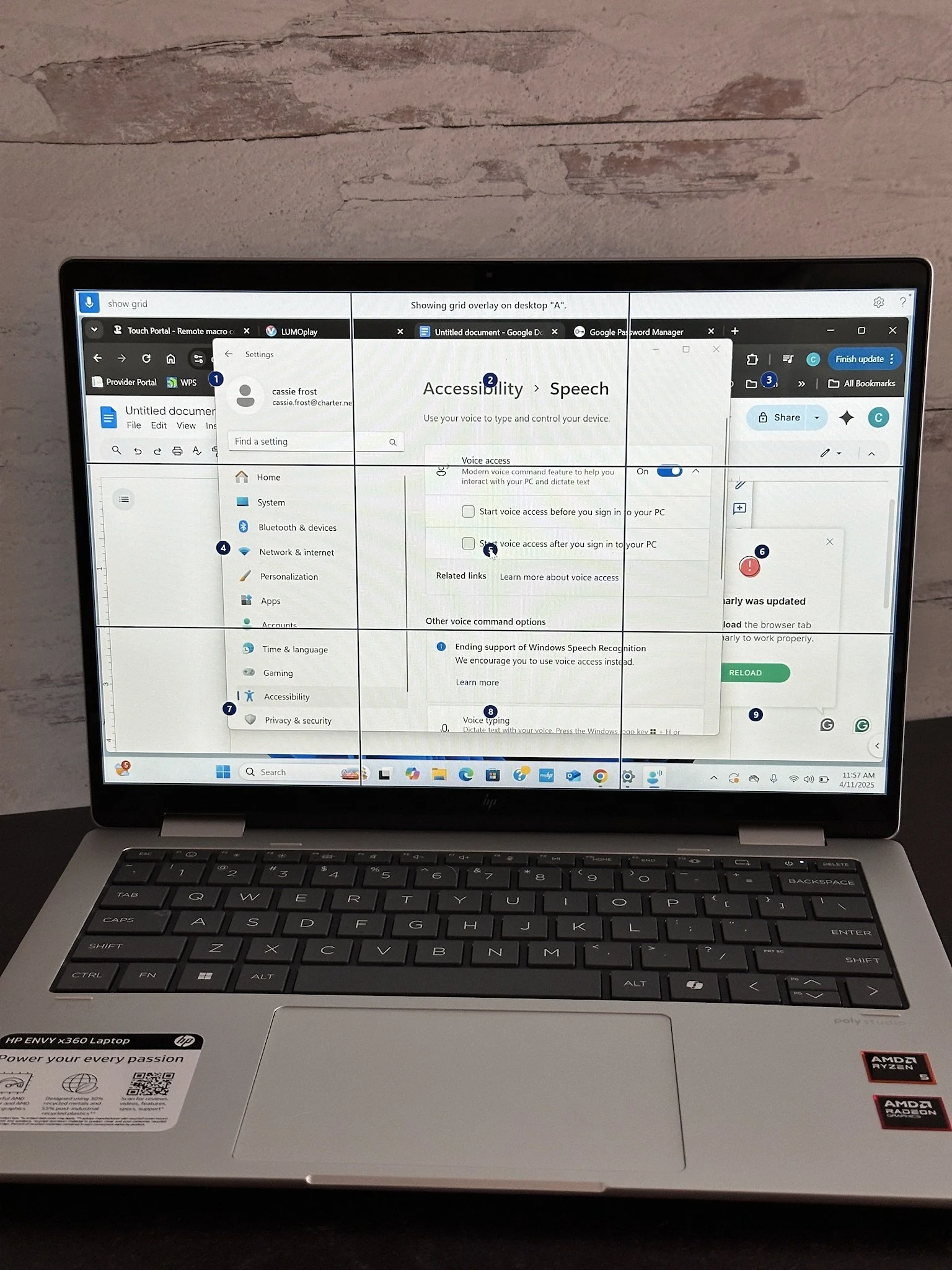
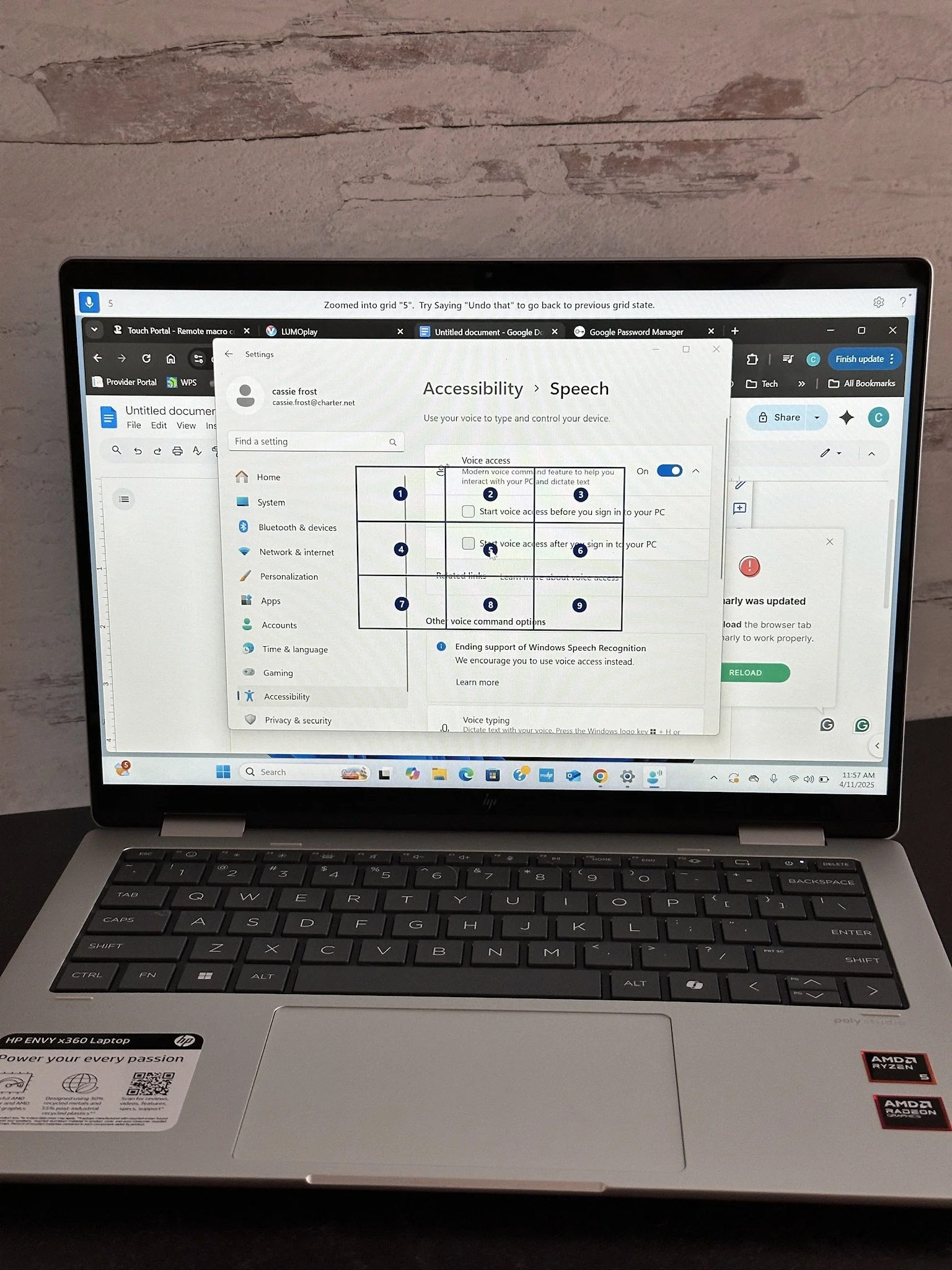
Voice Access – Lets you control your PC and dictate text using only your voice.
Magnifier
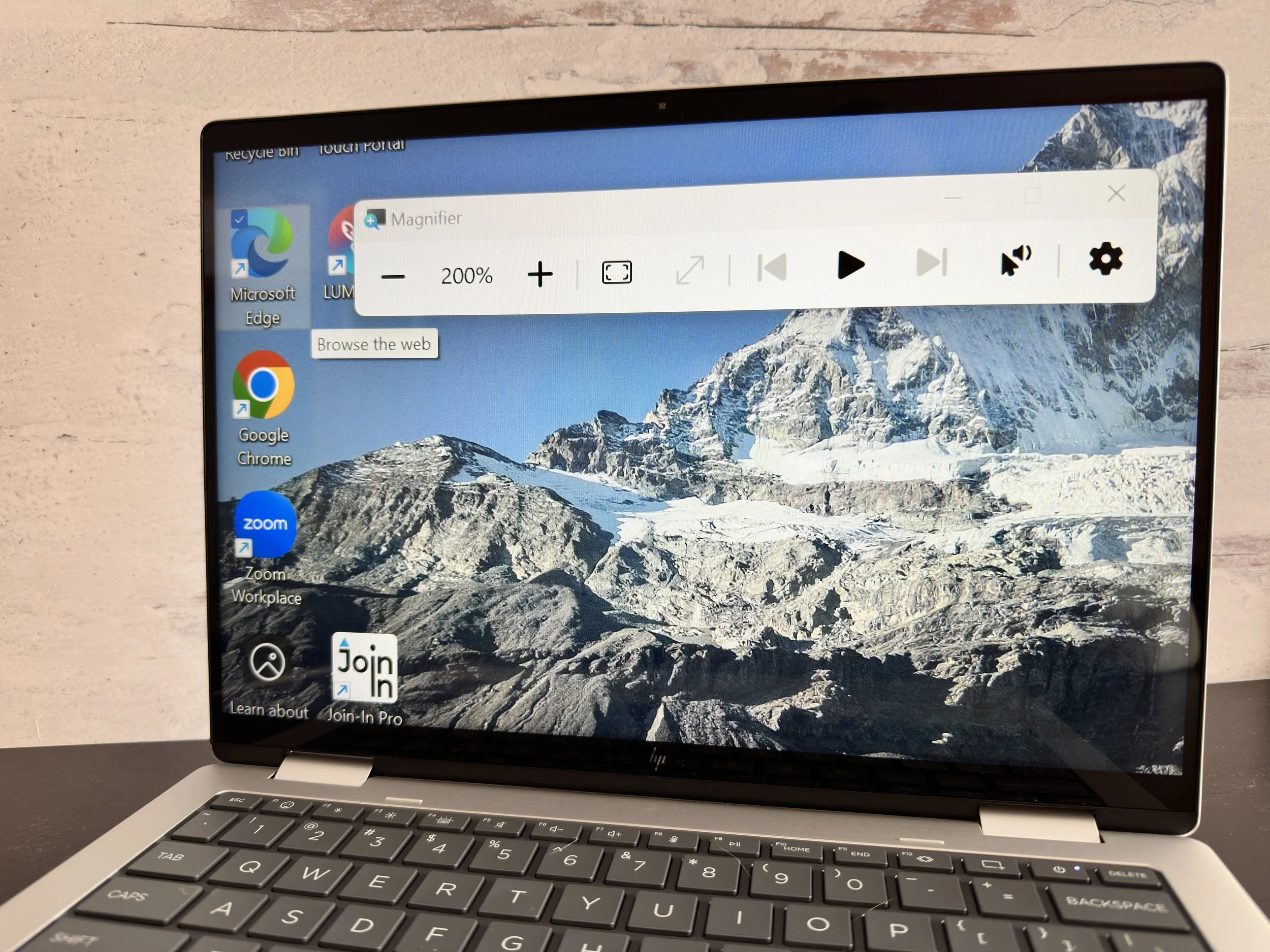
How it Helps: Magnifier allows you to zoom in on parts of your screen, making it easier to see text, images, and other content. This is especially useful for individuals with low vision.
How to Use It:
Press Win + Plus (+) to activate Magnifier.
You can adjust the zoom level or choose between different views (full screen, lens, or docked) from Settings > Ease of Access > Magnifier.
Narrator
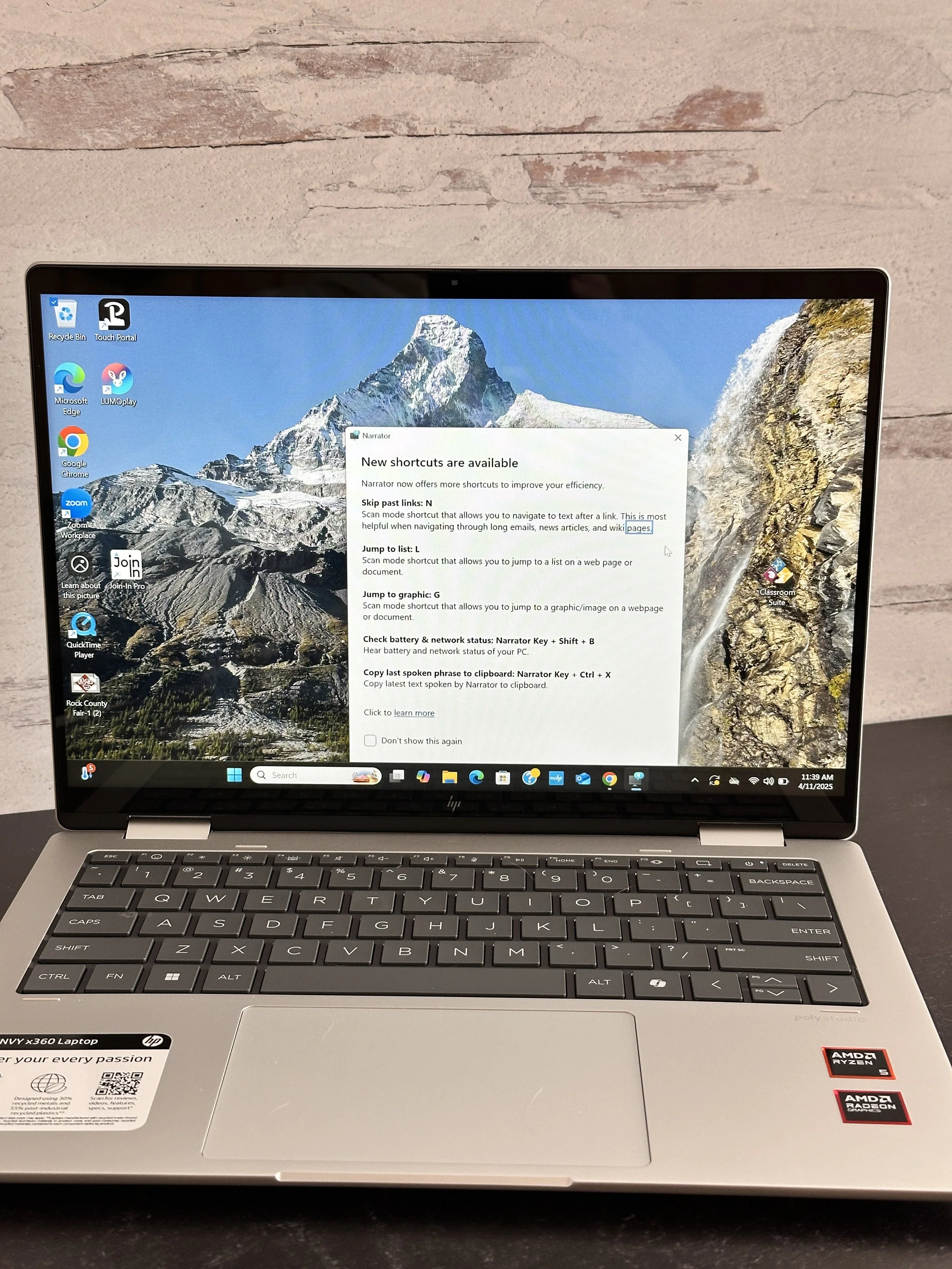
How it Helps: Narrator is a screen reader that reads aloud the text displayed on your screen. It helps users with visual impairments or reading disabilities navigate their device and interact with content.
How to Use It:
Press Ctrl + Win + Enter to turn on Narrator.
You can customize its voice settings, speed, and verbosity from Settings > Ease of Access > Narrator.
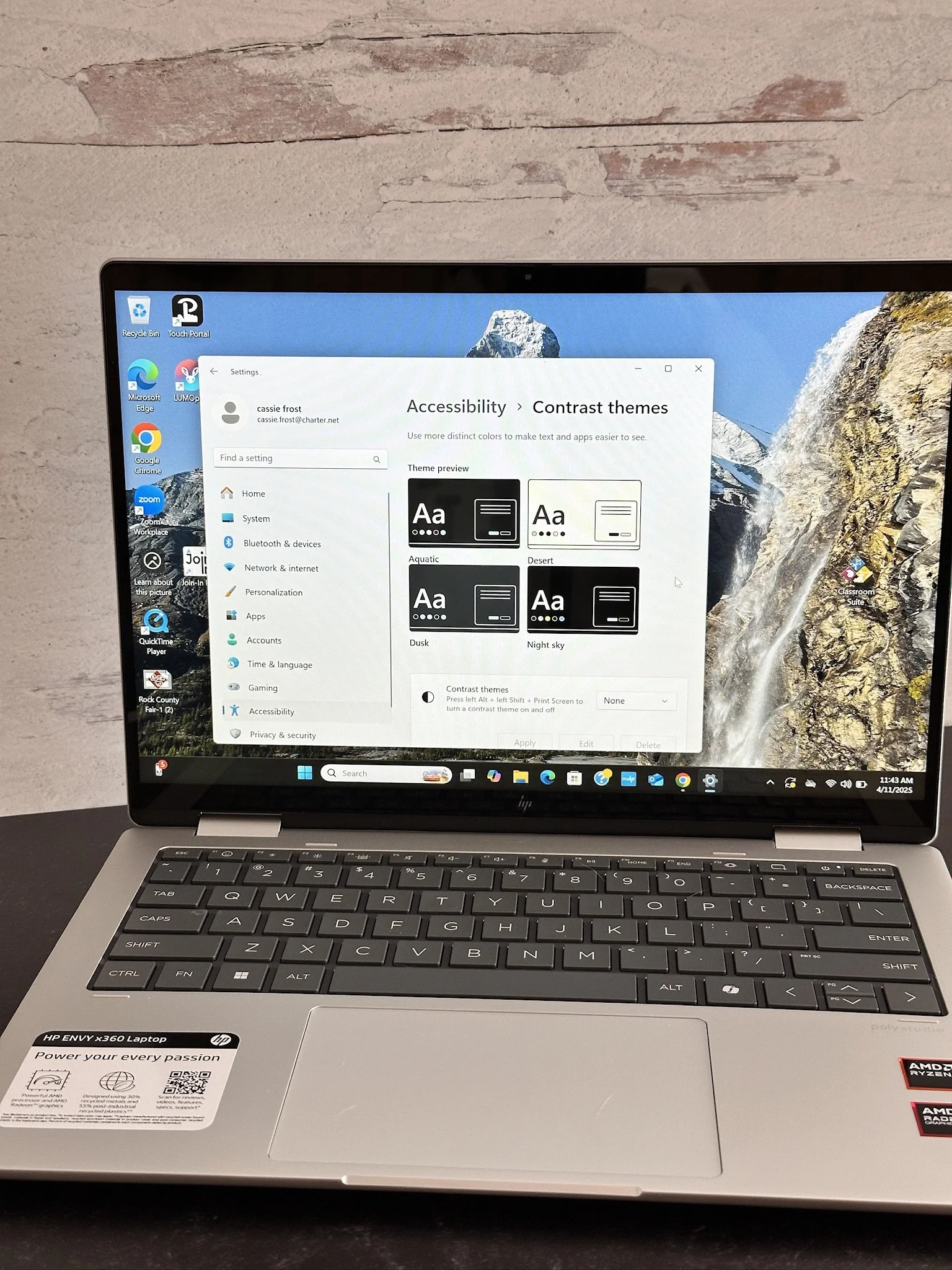
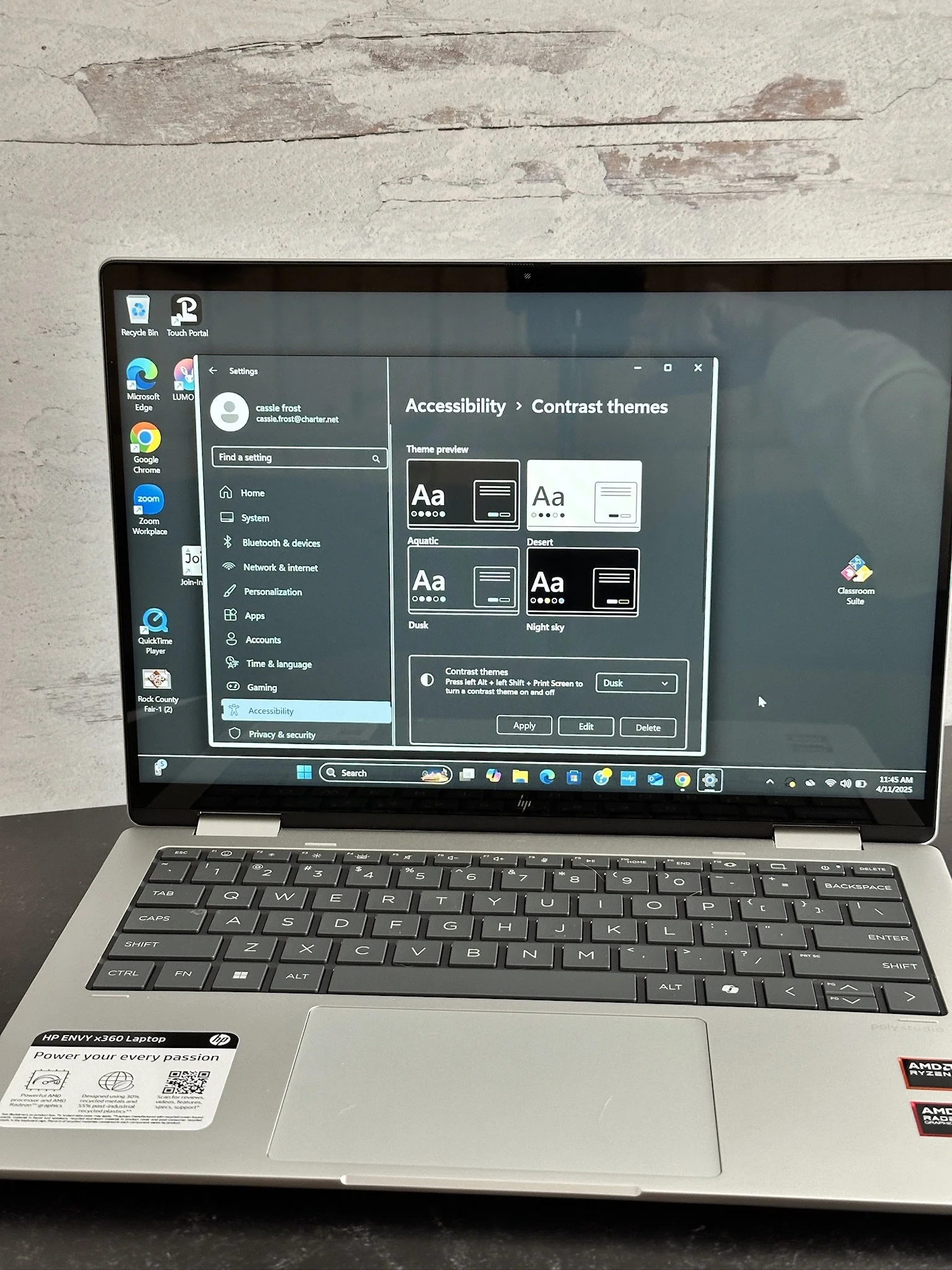
Contrast Themes
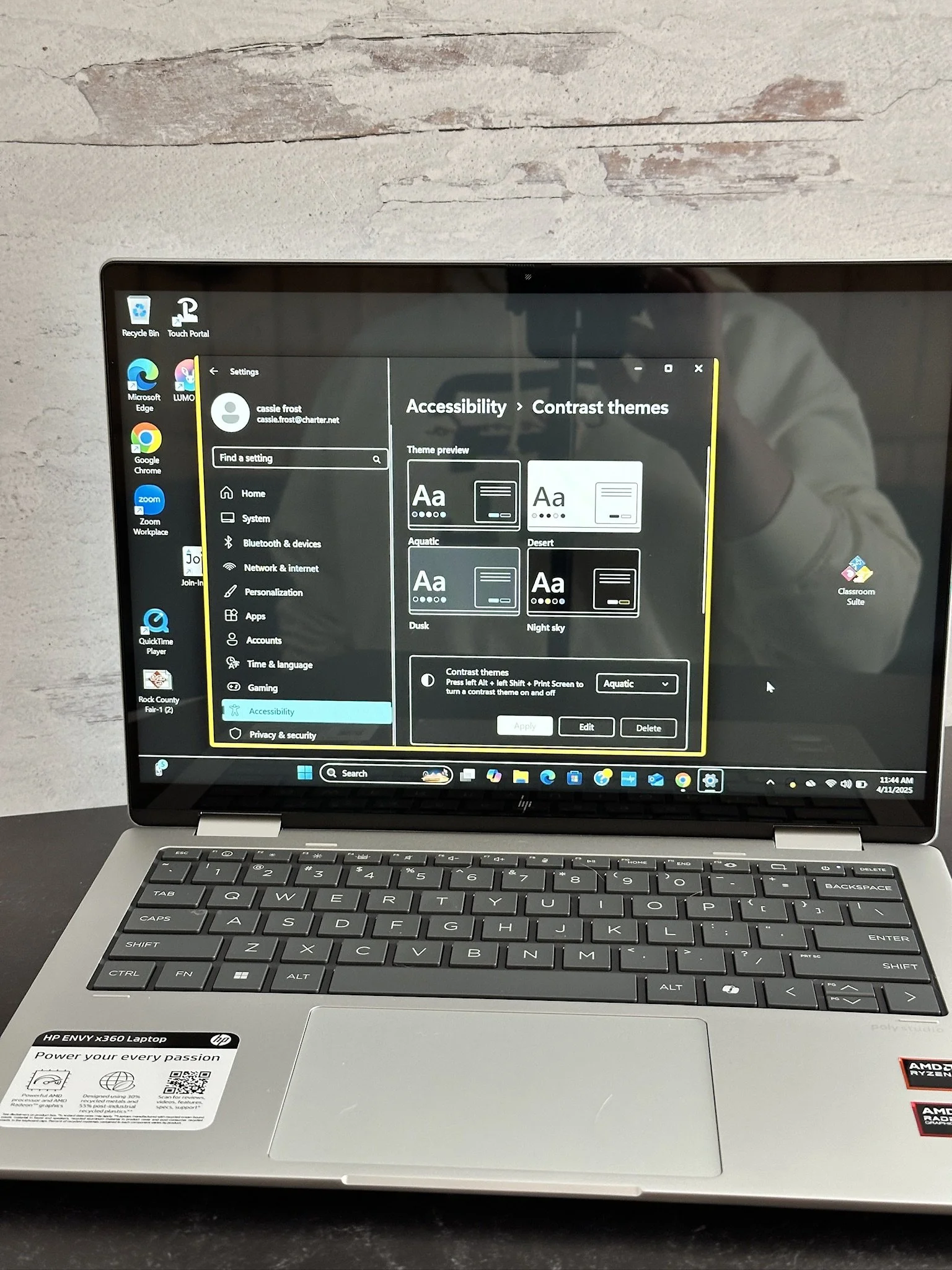
Dusk
Aqua
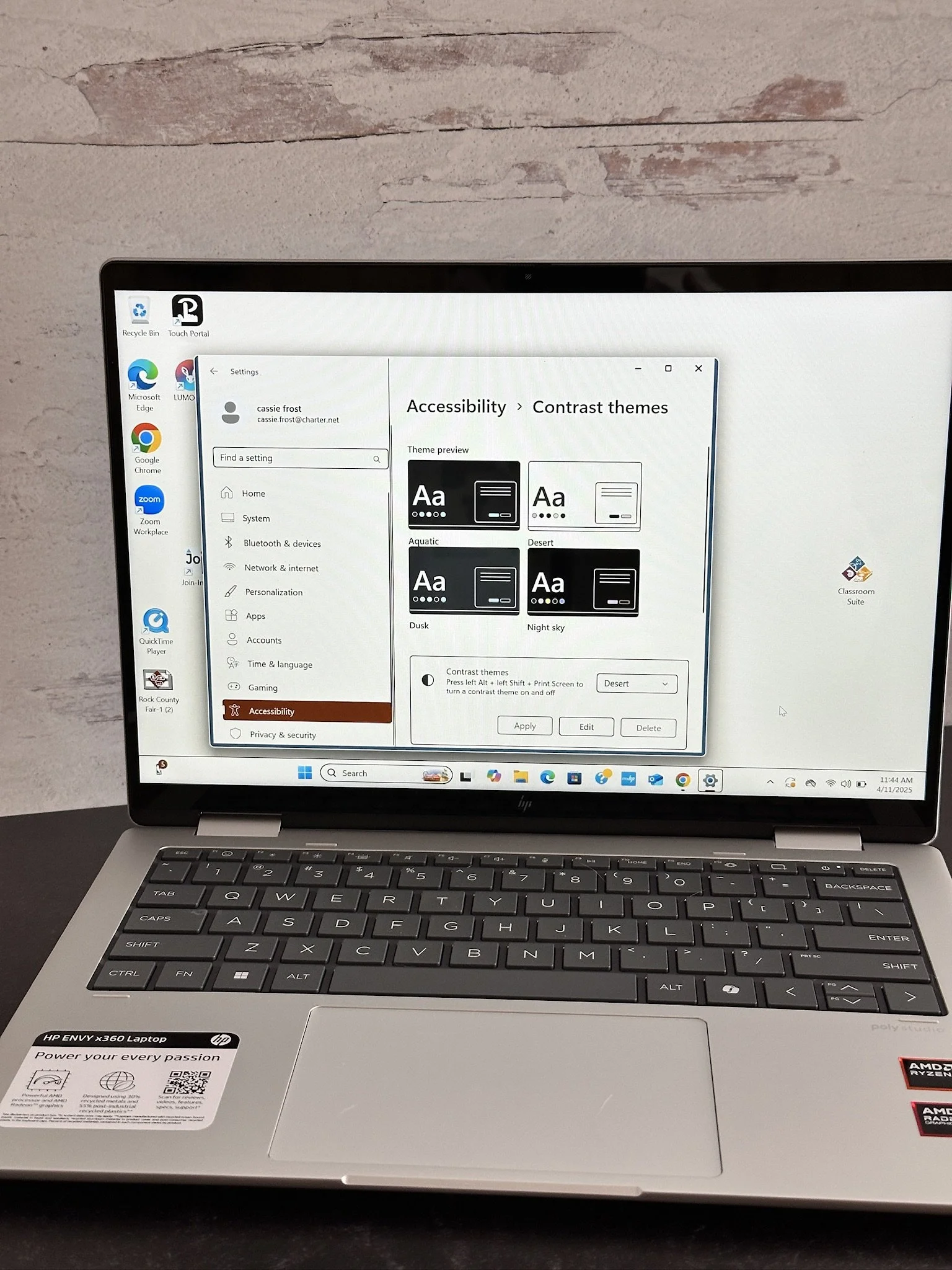
Desert
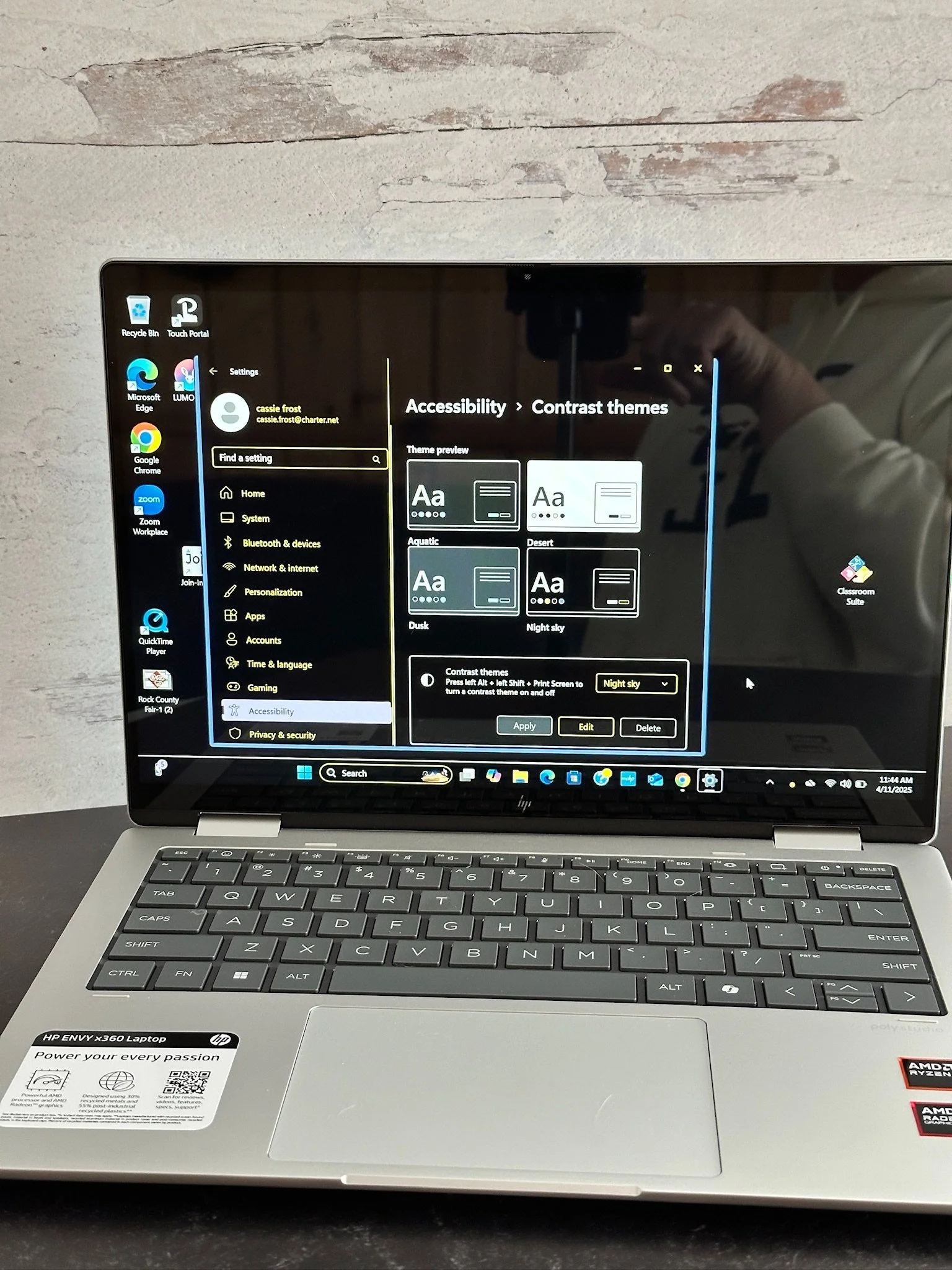
High Contrast
Night Sky
How it Helps: High Contrast Mode changes the color scheme of your computer screen to make text and other content stand out more clearly, benefiting individuals with visual impairments or color blindness.
How to Use It:
Press Left Alt + Left Shift + Print Screen to quickly toggle High Contrast.
You can also adjust settings through Settings > Ease of Access > High Contrast.
Closed Captions
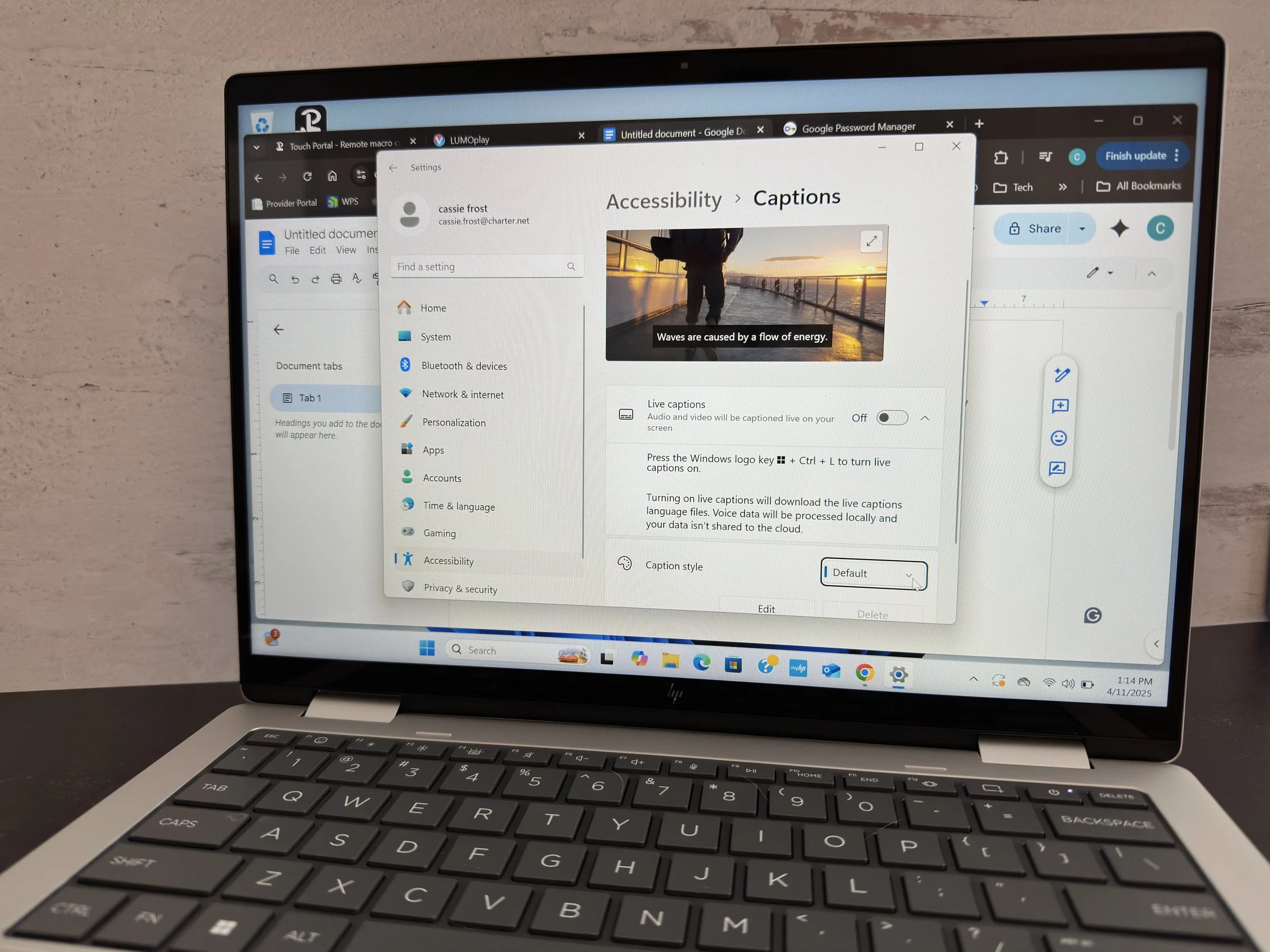
How it Helps: Closed captions provide text descriptions of audio content, helping individuals who are deaf or hard of hearing understand spoken words in videos and other multimedia.
How to Use It:
Go to Settings > Ease of Access > Closed Captions to enable and customize the appearance of captions for media.
On-Screen Keyboard
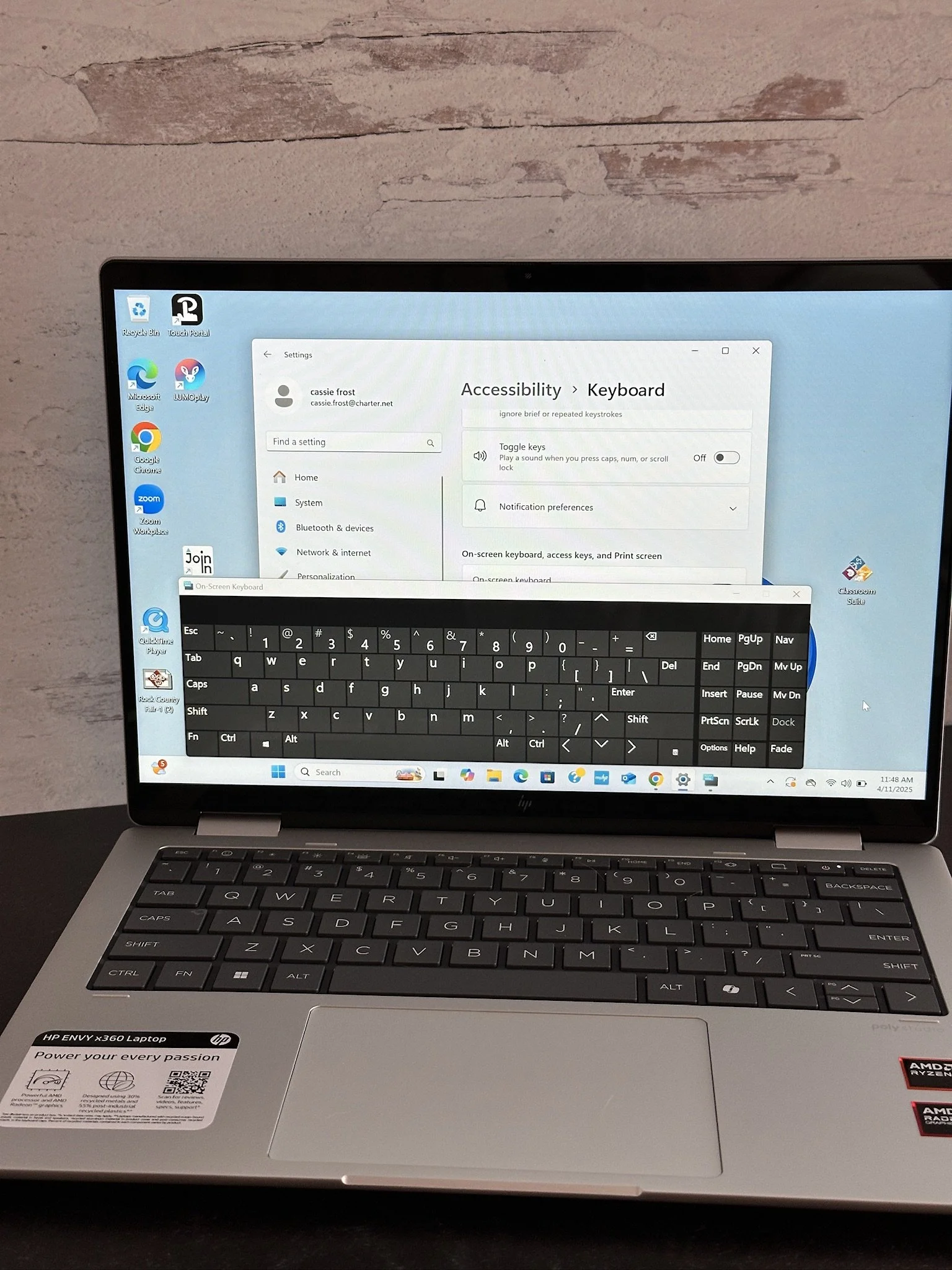
How it Helps: The On-Screen Keyboard allows you to use your mouse or other pointing devices to type, which is helpful for individuals with mobility impairments or those unable to use a physical keyboard.
How to Use It:
Press Win + Ctrl + O to open the On-Screen Keyboard.
It can also be accessed through Settings > Ease of Access > Keyboard.
Sticky Keys
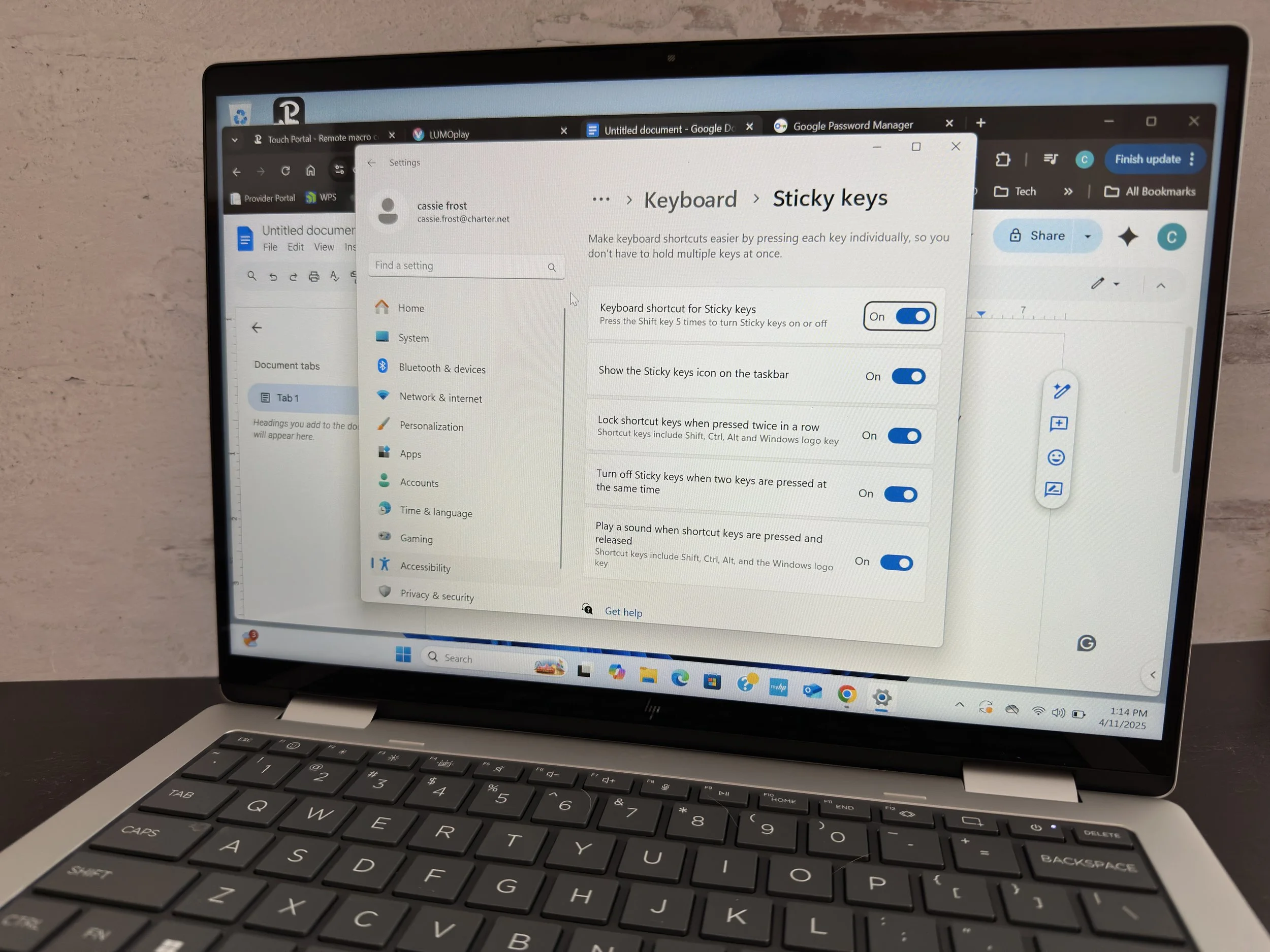
How it Helps: Sticky Keys helps users who have difficulty pressing multiple keys at once by allowing them to press one key at a time (e.g., Shift, Ctrl, Alt) and have the action function as if all keys were pressed together.
How to Use It:
Press Shift five times to activate Sticky Keys.
You can also turn it on via Settings > Ease of Access > Keyboard.
Color Filters
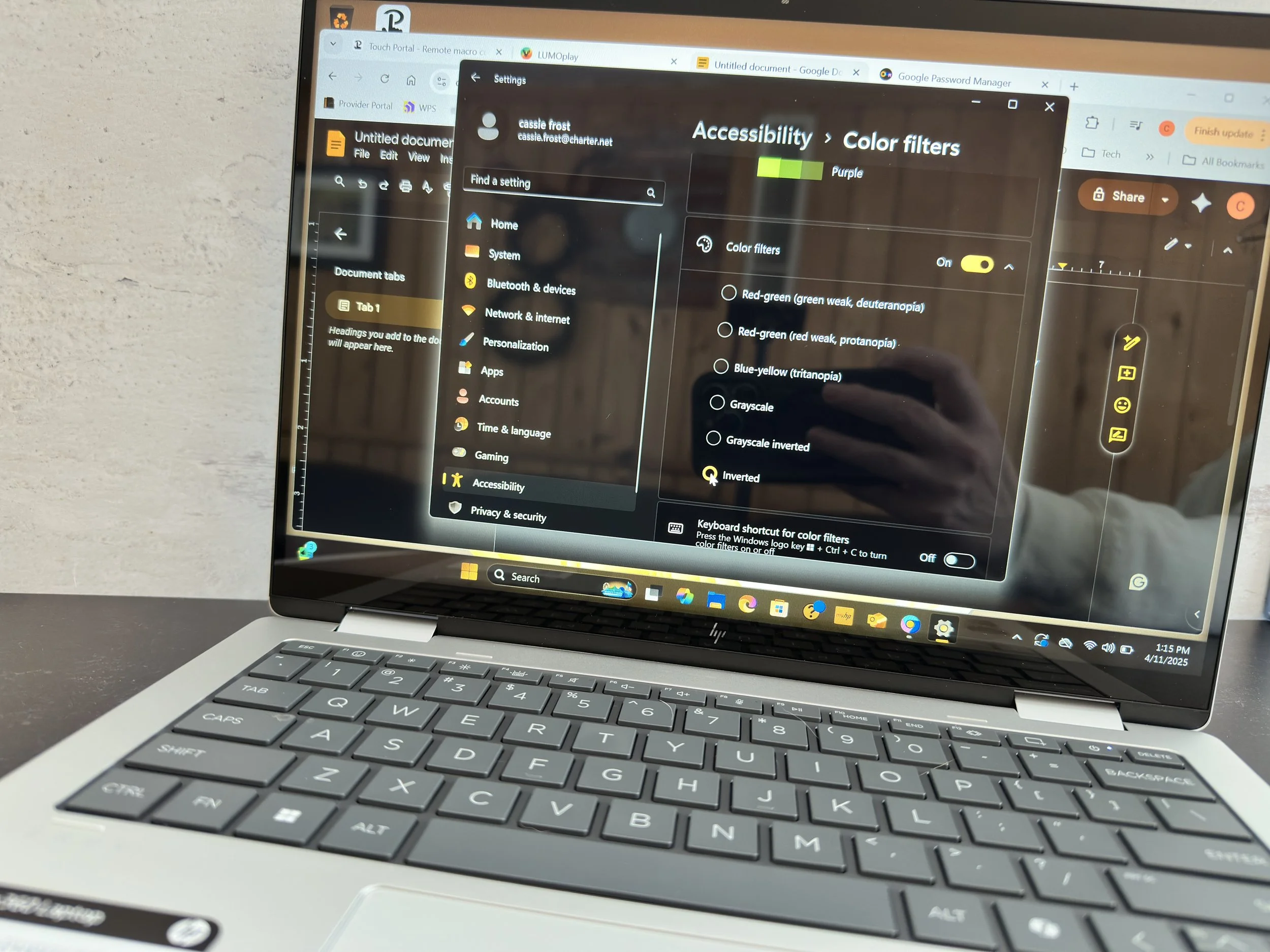
How it Helps: Color Filters assist individuals with color blindness or vision impairments by adjusting the color scheme of the screen to make it easier to see text and graphics.
How to Use It:
Go to Settings > Ease of Access > Color Filters to enable this feature and choose the appropriate filter (e.g., grayscale, red-green filter).
Focus Assist
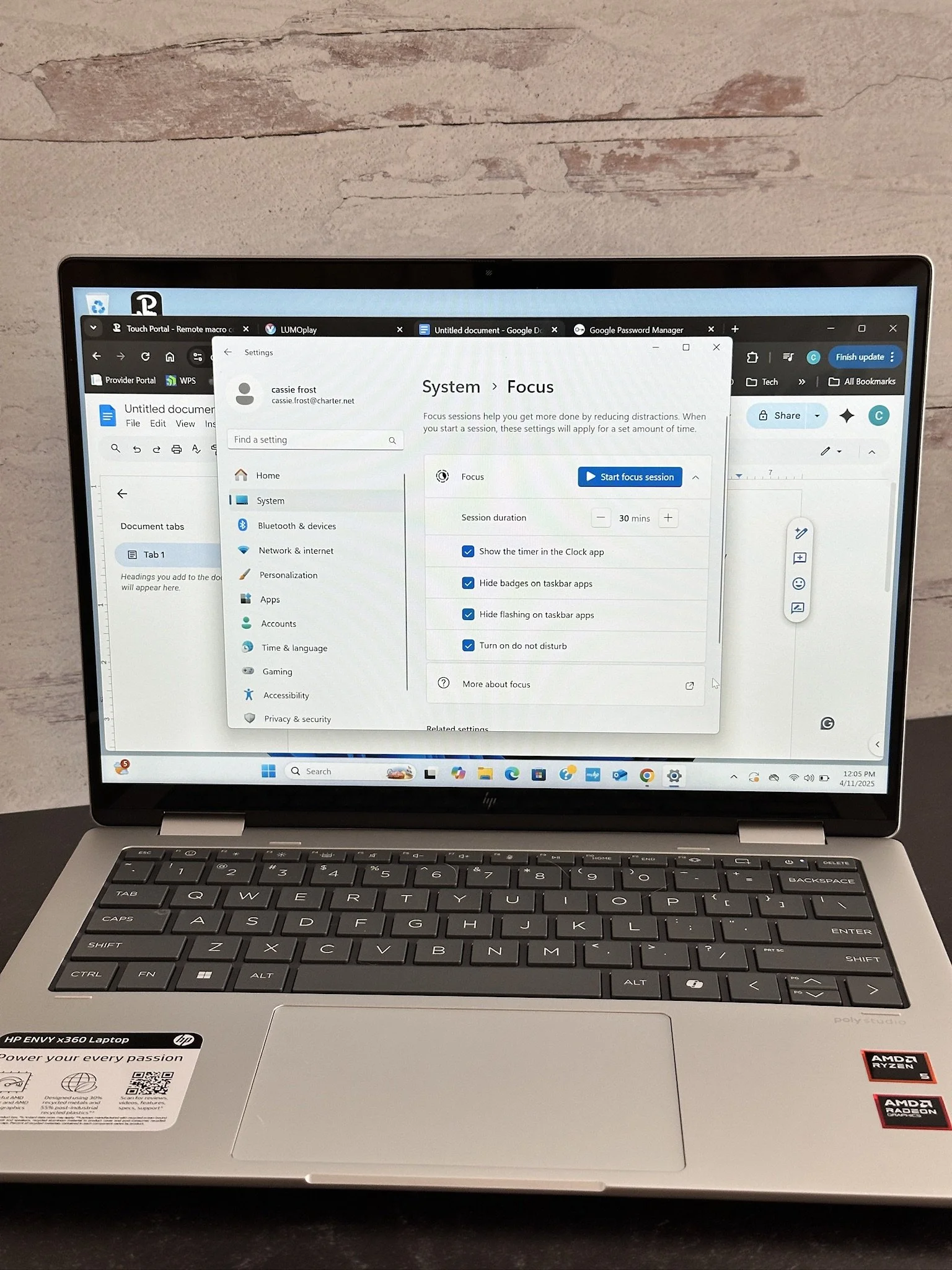
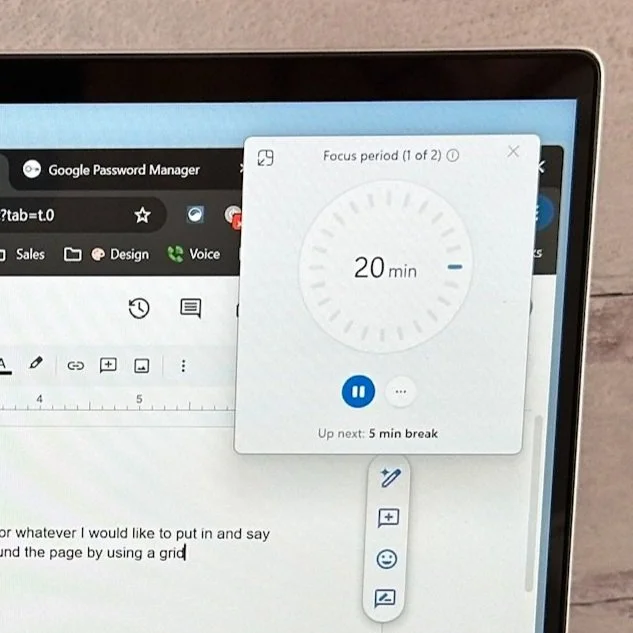
How it Helps: Focus Assist helps minimize distractions by silencing notifications and blocking non-essential alerts, allowing users to concentrate better on tasks, especially for those with attention-related challenges.
How to Use It:
Access it from Settings > System > Focus Assist and choose between Priority Only, Alarms Only, or Off modes.
Voice Access
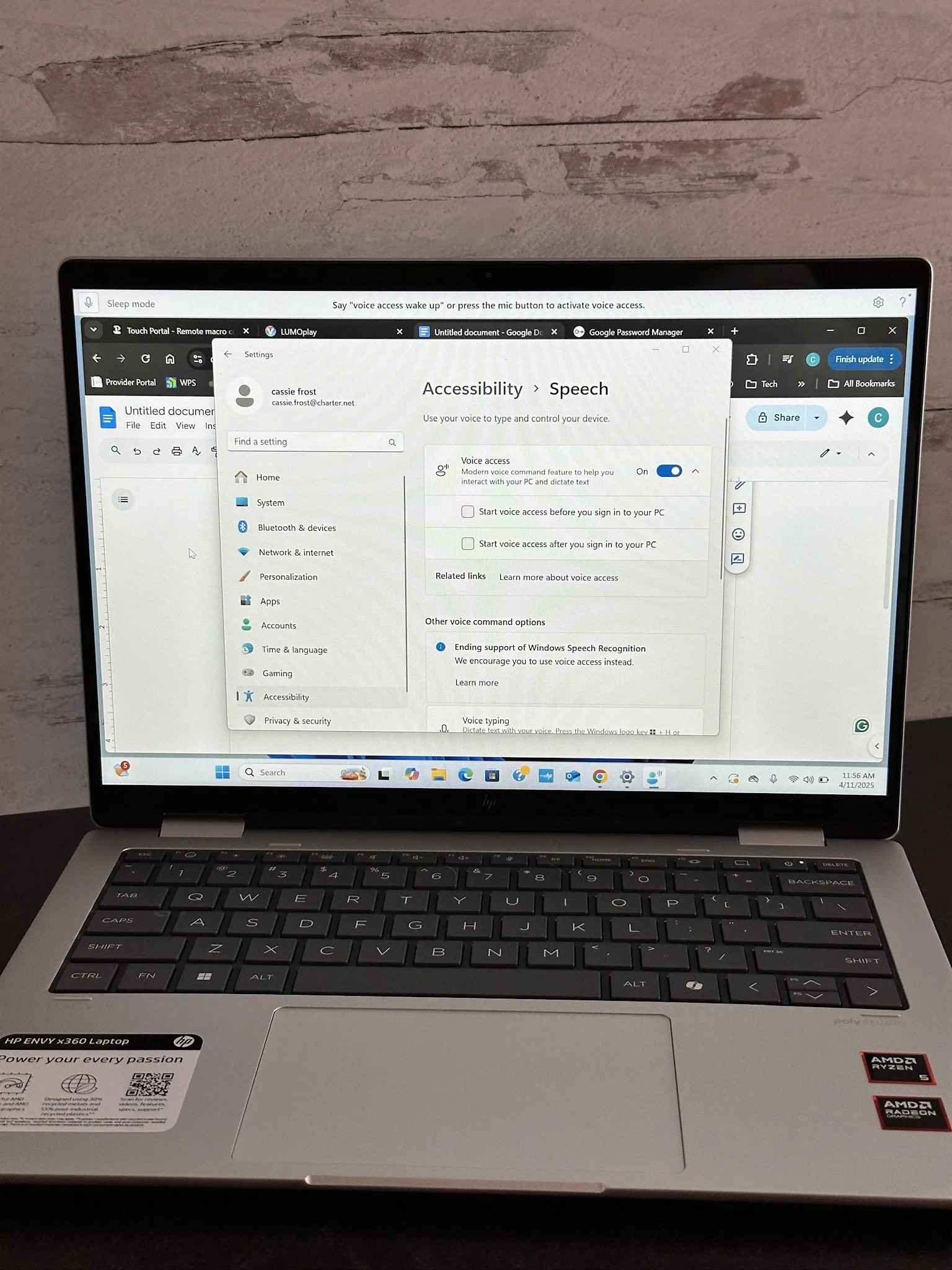
How it helps: Lets you control your PC and dictate text using only your voice.
How to use it:
Go to Settings > Accessibility > Speech
Turn on Voice access