
Introduction to Mac Accessibility Features
Here’s the good news—MacBooks are built with accessibility in mind.
Whether you're a person with a disability or someone supporting a loved one, Apple’s built-in accessibility tools are designed to make MacBooks easier to use for everyone. From voice control and screen readers to features that help with focus, hearing, and mobility, MacBooks include customizable options that adapt the technology to your needs—not the other way around.

Quick List of MacBook Accessibility Tools
*Note- this is not an exhaustive list of all of the MacBook Accessibility tools. It is meant to be a starting place in the exploration of what is available.
VoiceOver – A screen reader that reads aloud everything on your screen
Zoom – Magnifies part or all of the screen to make small text or details easier to see.
Dictation/Voice Control – Lets users control the Mac or type using only their voice.
Display Customizations – Adjust contrast, reduce motion, and apply color filters to reduce visual strain.
Switch Control– Allows users to control their Mac using adaptive switches or keyboard shortcuts.
Live Captions/Subtitles- Displays captions for spoken content on-screen.
Keyboard Accessibility- Sticky Keys, Slow Keys, and Full Keyboard Access.
Pointer Control – Customizes how the mouse or trackpad behaves, and supports alternative input devices.
Each of these features is highly customizable—so whether you need larger text, better contrast, or hands-free navigation, your MacBook can be adjusted to be more accessible.
VoiceOver
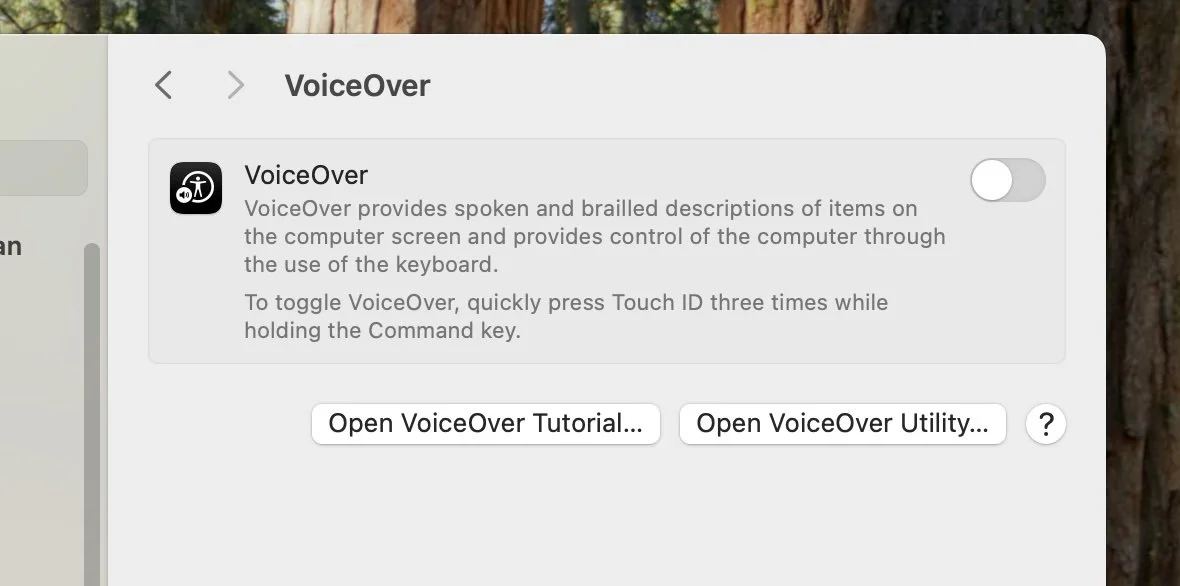
What It Is: VoiceOver is a built-in screen reader that describes exactly what’s happening on your screen.
Who It Helps: Individuals who are blind or have low vision.
Key Features:
Spoken descriptions of items under your cursor
Voice navigation through apps, webpages, and documents
Works with Braille displays
How to Use It:
Turn on by pressing
Command + F5or navigating to System Settings > Accessibility > VoiceOver.
Zoom
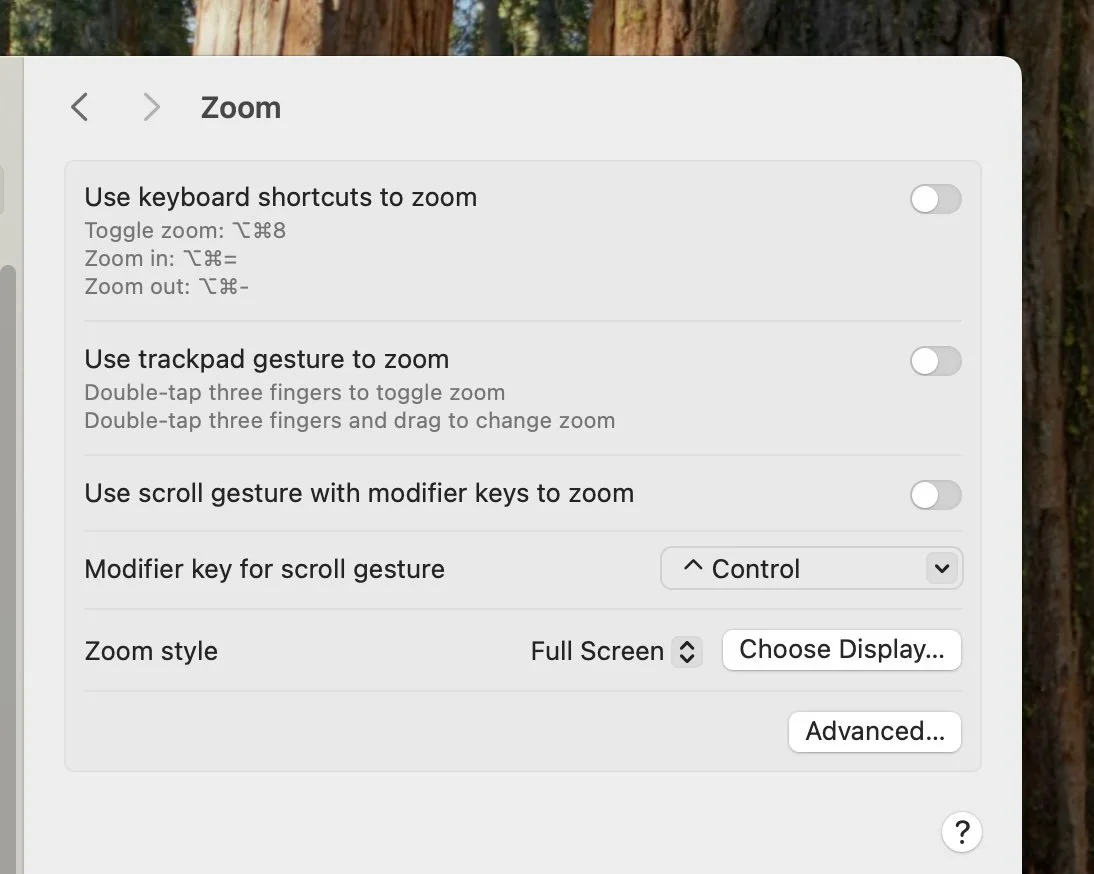
What It Is: Zoom magnifies the screen to help users see text, buttons, and other visual content more clearly.
Who It Helps: Individuals with low vision or difficulty seeing small details.
Key Features:
Full-screen zoom or picture-in-picture
Smooth image rendering
Adjustable zoom levels
How to Use It:
Go to System Settings > Accessibility > Zoom.
Choose how to activate Zoom (keyboard shortcuts, gestures, etc.).
Customize maximum and minimum zoom.
Dictation/Voice Control
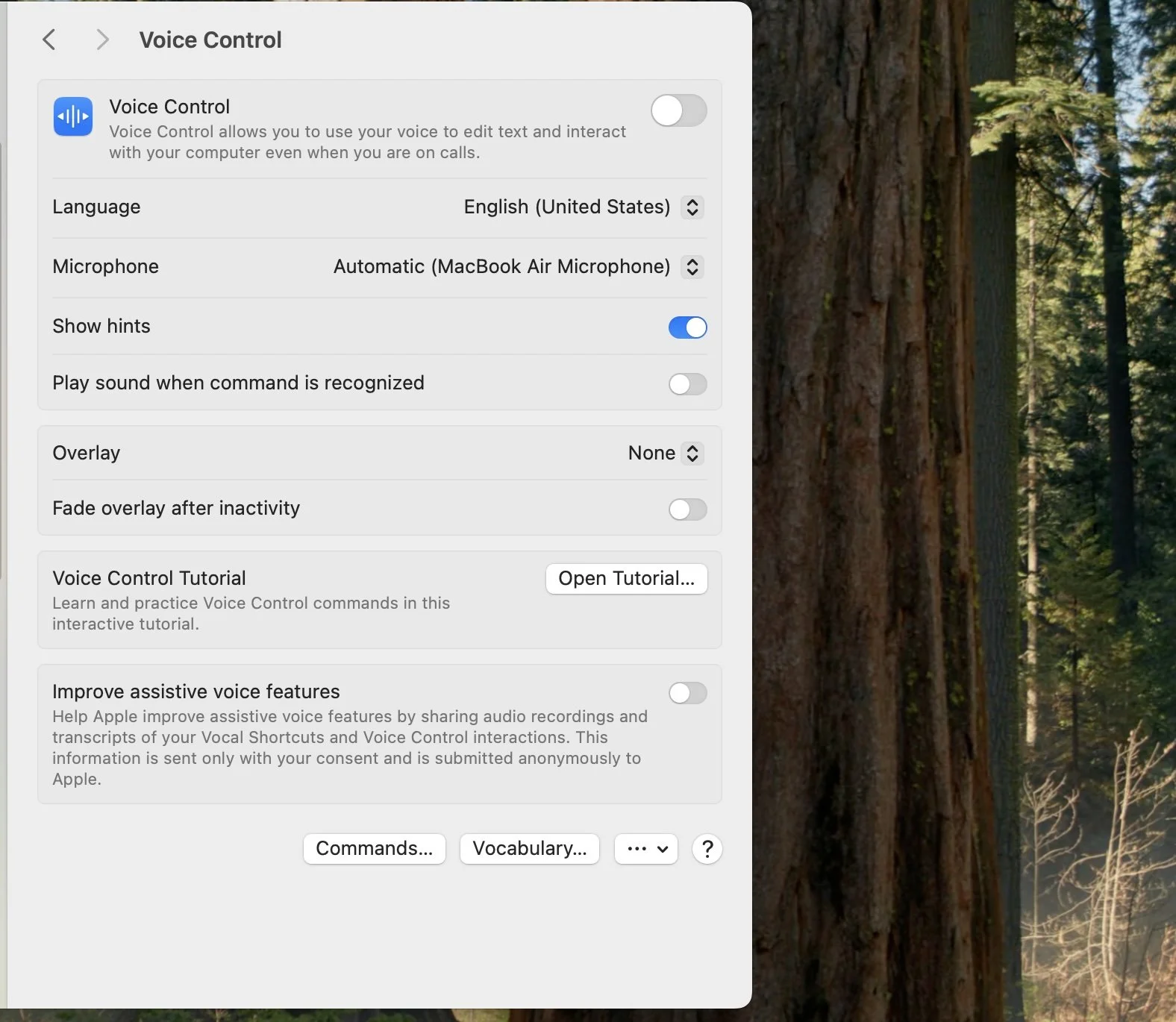
What It Is: Allows users to navigate and control their Mac using spoken commands.
Who It Helps: Individuals with limited hand mobility or who prefer speech-based input.
Key Features:
Dictate text into any field
Navigate menus, click buttons, and open apps with voice commands
Comprehensive command library
How to Use It:
Enable in System Settings > Accessibility > Voice Control.
Dictation is also available through the Keyboard menu.
Practice commands or create custom ones for your needs.
Display Customizations
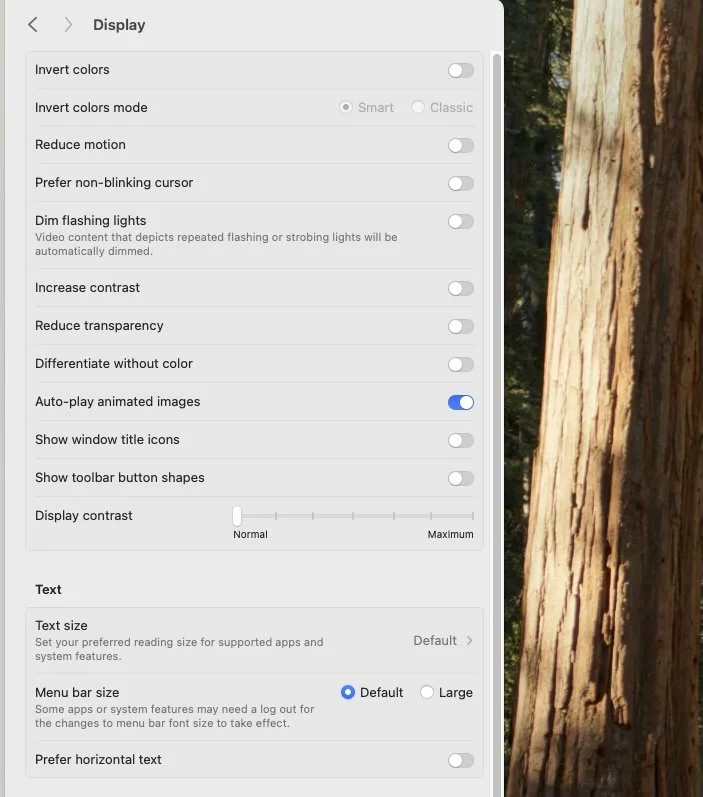
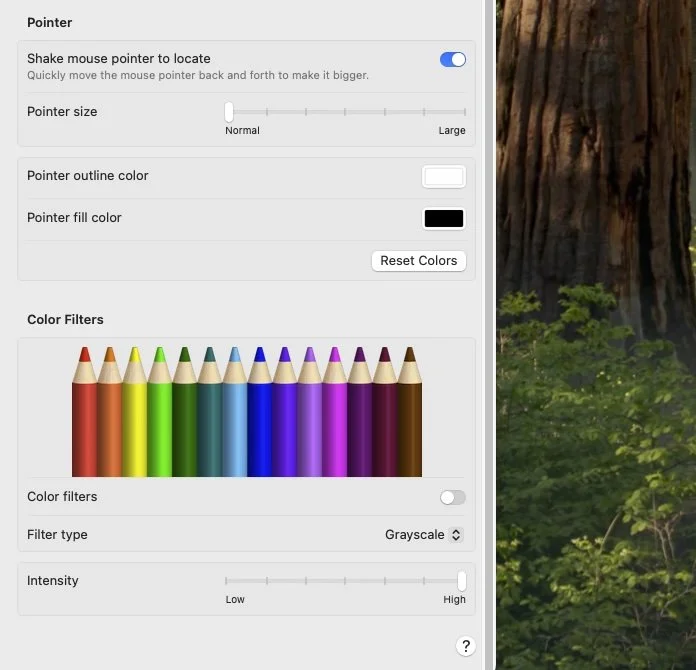
What It Is: Lets users modify how content appears on-screen to reduce visual clutter or strain.
Who It Helps: Individuals with visual processing differences or light sensitivity.
Key Features:
Reduce motion or transparency
Invert or enhance contrast
Apply color filters (e.g., for color blindness)
How to Use It:
Navigate to System Settings > Accessibility > Display.
Adjust settings like contrast, motion, or brightness.
Switch Control
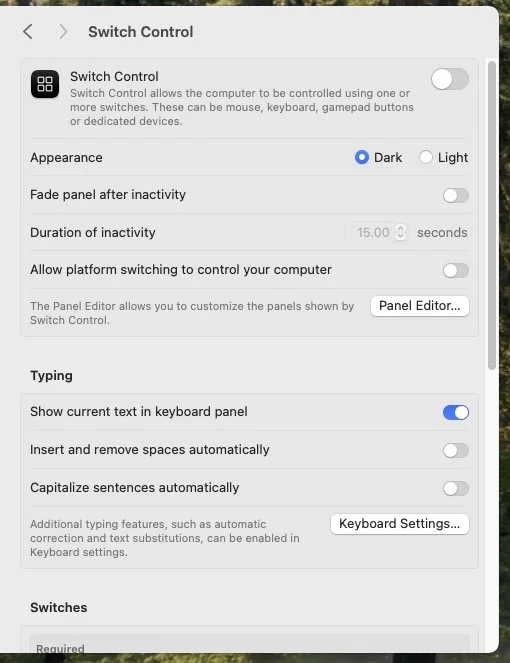
What It Is: Enables full Mac control using a switch device or keyboard.
Who It Helps: Users with physical disabilities who use assistive switches.
Key Features:
Panel-based navigation
Auto-scanning through UI elements
Custom recipes for common actions
How to Use It:
Turn on in System Settings > Accessibility > Switch Control.
Connect your switch and customize your scanning method.
Live Captions/Subtitles
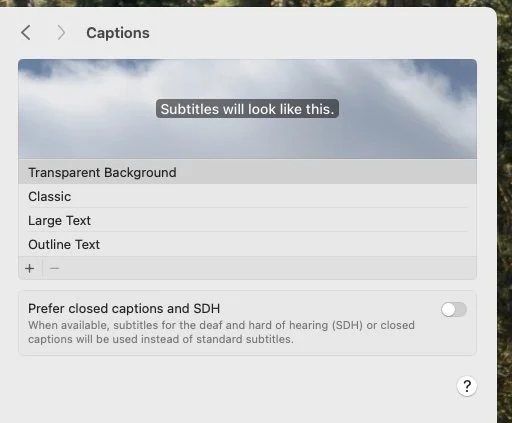
What It Is: Automatically generates captions for audio content.
Who It Helps: Individuals who are deaf, hard of hearing, or in noisy environments.
Key Features:
System-wide captioning
Customizable font and background color
Works with most audio/video apps
How to Use It:
Go to System Settings > Accessibility > Hearing > Captions.
Enable closed captions and customize appearance.
Keyboard Accessibility
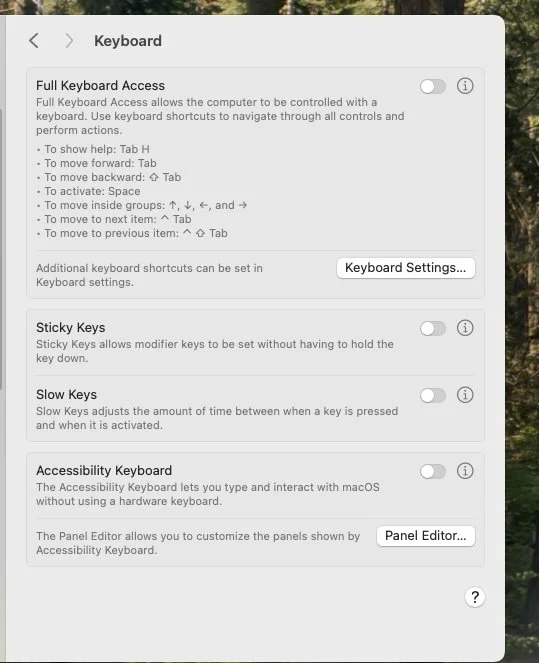
What It Is: Provides customizable typing features for users with motor challenges.
Who It Helps: Individuals who struggle with traditional keyboard input.
Key Features:
Sticky Keys (press keys one at a time for combos)
Slow Keys (delays response time to prevent accidental presses)
Full Keyboard Access for screen navigation
How to Use It:
Visit System Settings > Accessibility > Keyboard.
Toggle on the features you need and test settings.
Pointer Control
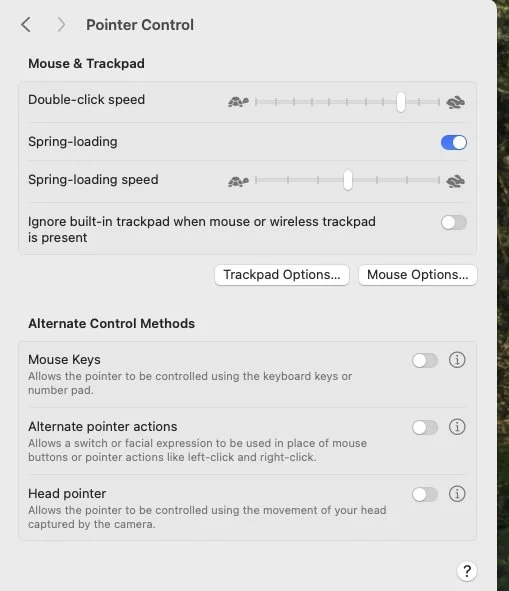
What It Is: Adjusts how your mouse or trackpad works.
Who It Helps: Users with fine motor difficulties or who use alternative input devices.
Key Features:
Adjust cursor size and speed
Enable mouse keys (control pointer with keyboard)
Support for head or eye tracking devices
How to Use It:
Open System Settings > Accessibility > Pointer Control.
Configure pointer speed, double-click delay, and more.